
1. Within a box, click on the Add/Reorder menu at the bottom, and select "Book from the Catalog."

2. Enter the book's ISBN and then click "Get Book Info." This will generate an image and a description for the book. Edit or delete the info fields as you wish, but try to maintain consistency when adding multiple books.

3. In the URL field, enter the book's permalink from OCC's catalog entry.

4. In the Cover Art section, add the book's title in the ALT Text field. If there isn't a cover available, you can use the first drop-down menu to select a generic book cover image.
5. Click Save.
1. Click "Add Box" on your desired LibGuide page/column.
2. Click on the "Reuse Existing Box" tab. From there, select the guide and name of the box that you want to reuse. Give your box a name (or leave that field blank to keep its existing name), then click "Save."

(If you want to make a copy of the box instead, select the "Copy" option. Note that any changes made on an original box will NOT be made to a copy of that box.)
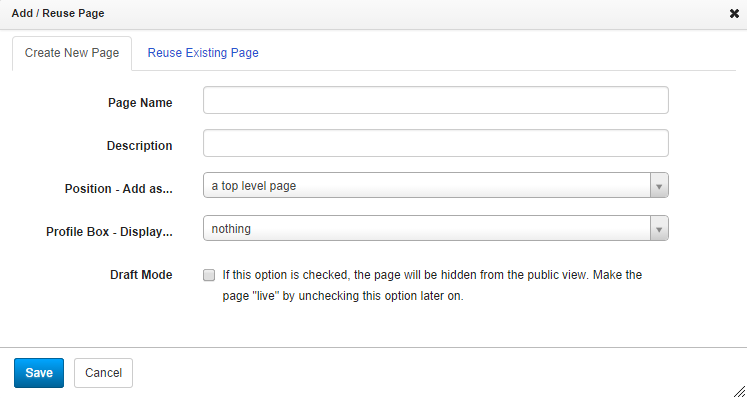
To add a page under an existing page, as a drop-down menu item:

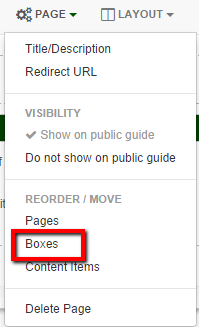
On any page, use the drop-down menu just under the tabs for Page and select re-order Boxes. You can then drag & drop them where you'd like.
External links — links that are not within the OCC website — should be set up to open in a new window. There are two ways to do this.


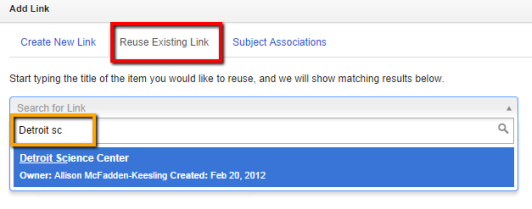
You may want reuse database links or boxes in your guide. The advantages of reusing links are:
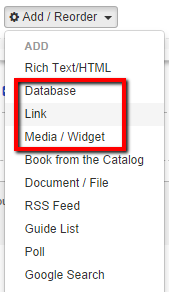
Follow these steps to reuse links, databases, or embedded media widgets in your guide:
You can create direct links to documents housed in in LibGuides by using the asset ID number.

To hide a subpage, click on the "Page" menu, and select "Do not show on public guide" under the Visibility heading.


Uploading a new file
Update an existing file


Selecting the subject All Guides will automatically include it on the list of all guides at https://libguides.oaklandcc.edu/allresearchguides.
Make sure to also manually add the guide to the appropriate alphabetical letter tab.
First, you’ll need to add the subject 'Course Guide' on the LibGuide that you're hoping to add to the Course Guide list.
See here:

This will make the guide show up at https://libguides.oaklandcc.edu/course_guides
If you also want the guide to appear on the list of all guides at https://libguides.oaklandcc.edu/allresearchguides you’ll need to add the additional subject "All Guides," just as you added Course Guides. This will make it show up on the All Guides list https://libguides.oaklandcc.edu/allresearchguides under the All Tab:

While adding the 'All Guides' subject to a guide does make it automatically appear under the All guides tab pictured above, if you want it also listed under one of the alphabetical filters that is one more manual step:

To add a linked email address in the Rich Text Editor:


From within the guide, click on the "Guide Look & Feel" button from the dashboard menu at the top of the screen.
Before publishing your guide, view a preview by clicking the "Guide Preview" button. This appears as an "eye" icon in the top right menu of any LibGuide page while in admin mode. The preview will show how the page will look on a typical desktop/laptop computer screen.
It's also beneficial to preview how your LibGuide will look when viewed on a mobile device. There are two ways to do this:
1. Click on "Guide Preview" to see your guide, then drag the side of your browser window to make it smaller.
2. While viewing your guide in Guide Preview mode, right click anywhere on the page. Choose "Inspect" from the menu.